
Wheeliebot - w/ Code
 par TomKnox


Fichiers imprimables (14)
-
 stl
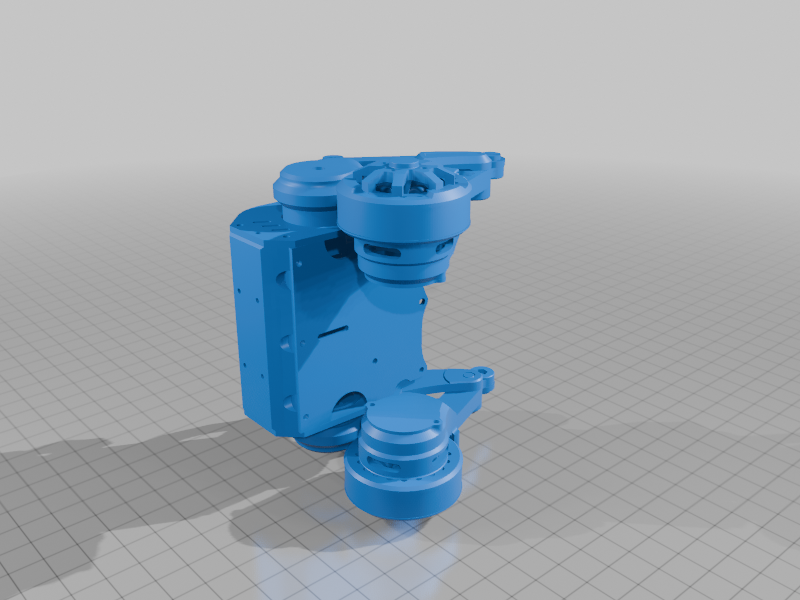
stl0100_Wheelibot_Complete.STL
205.2 Mo · 205 téléchargements
-
 stl
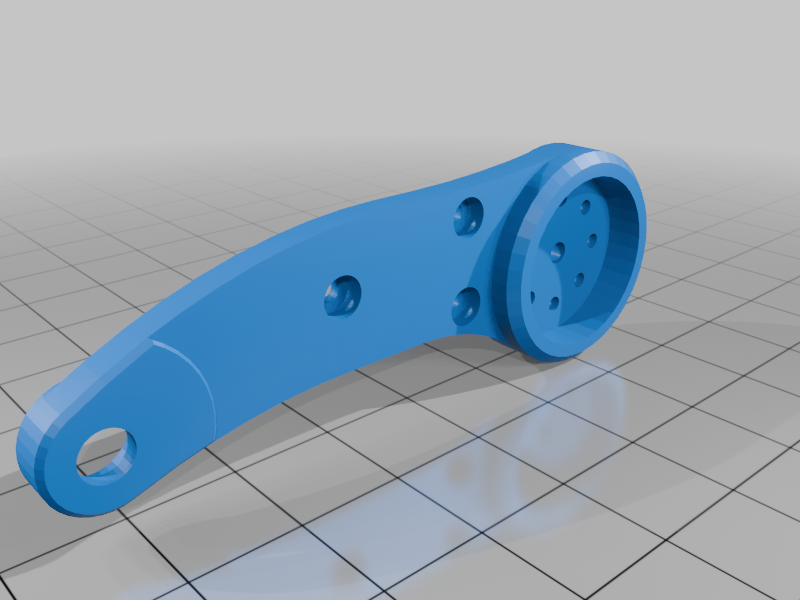
stl0101_ThighLeft.STL
180 Ko · 168 téléchargements
-
 stl
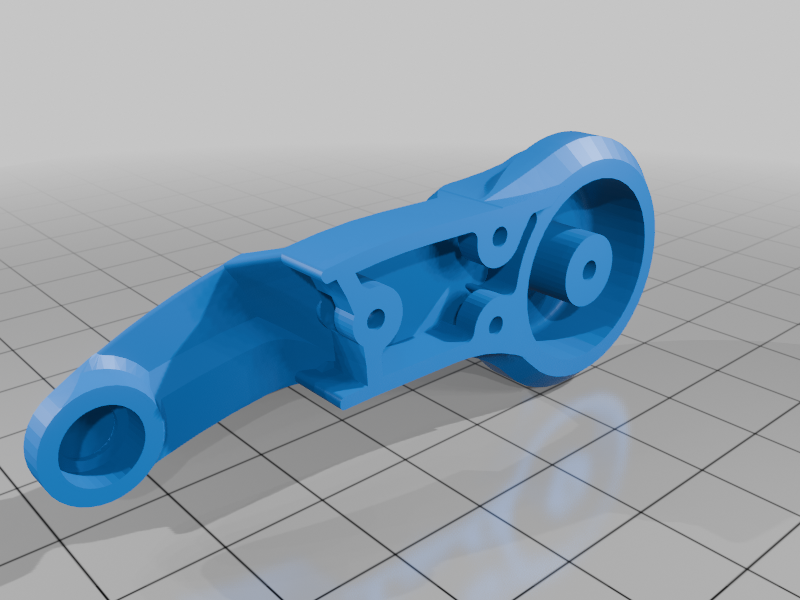
stl0102_ThighCoverLeft.STL
519 Ko · 167 téléchargements
-
 stl
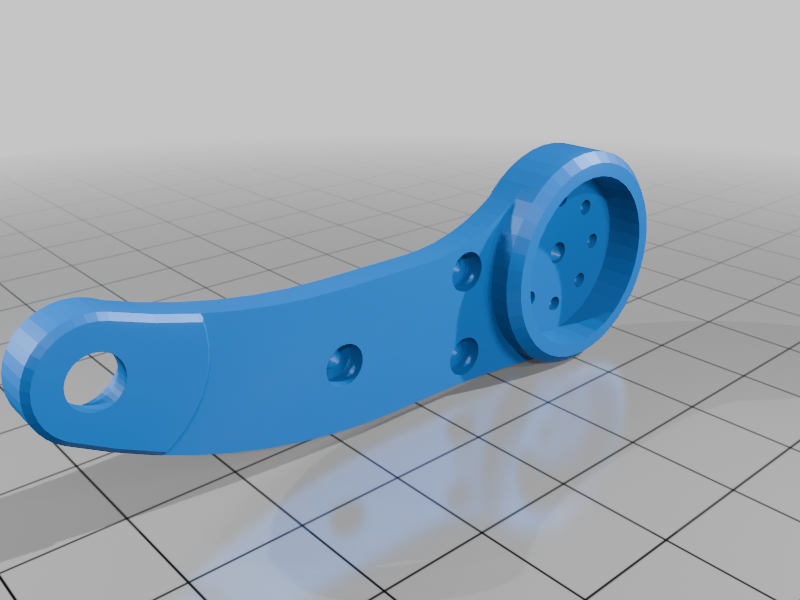
stl0103_ThighRight.STL
180 Ko · 165 téléchargements
-
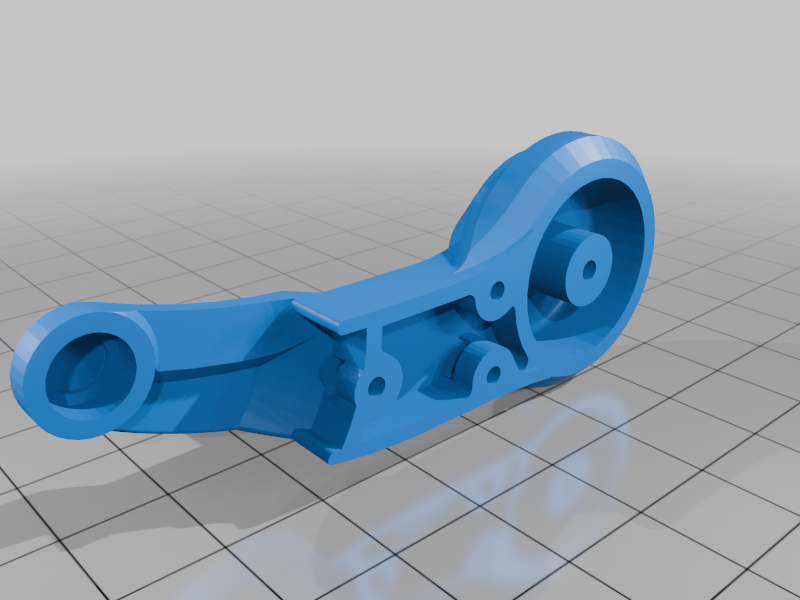 stl
stl0104_ThighCoverRight.STL
517 Ko · 166 téléchargements
-
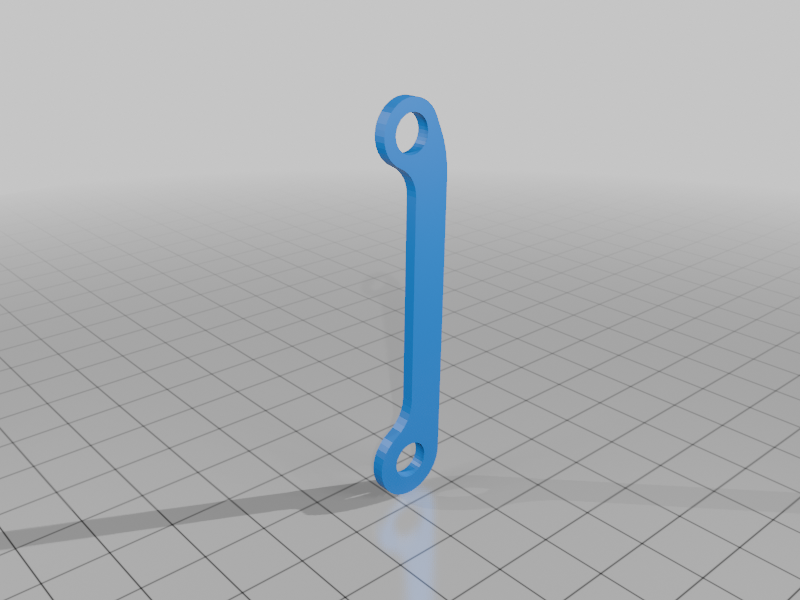 stl
stl0105_LowerLegStrut.STL
28 Ko · 165 téléchargements
-
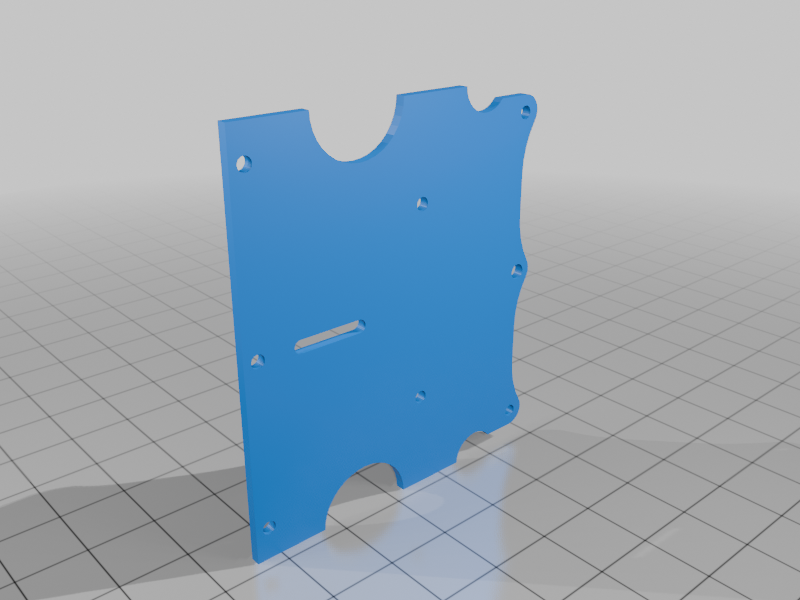 stl
stl0106_BasePlate.STL
97 Ko · 165 téléchargements
-
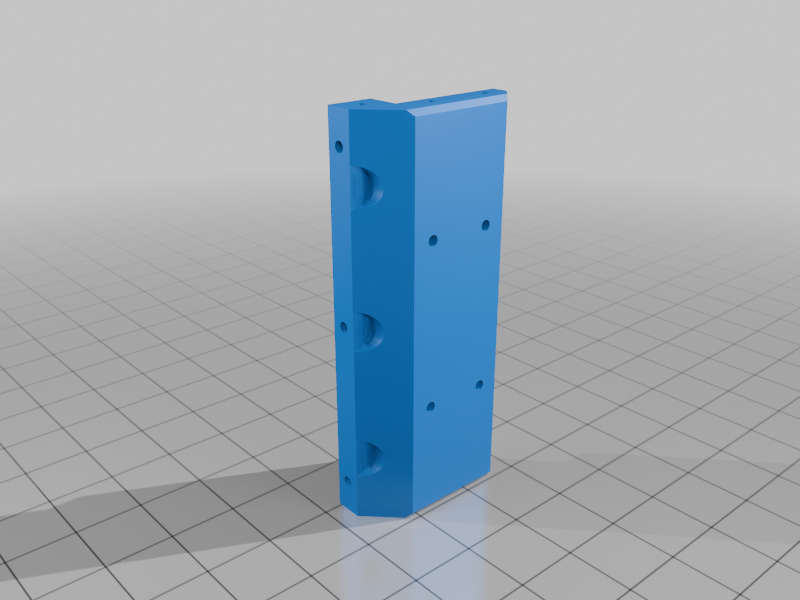 stl
stl0107_FrontPlate.STL
232 Ko · 165 téléchargements
-
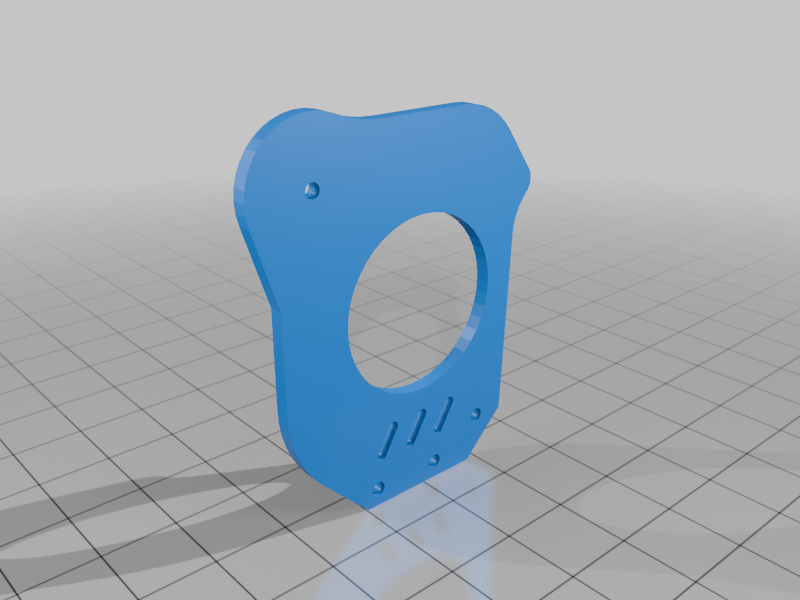 stl
stl0108_SidePllateLeft.STL
81 Ko · 165 téléchargements
-
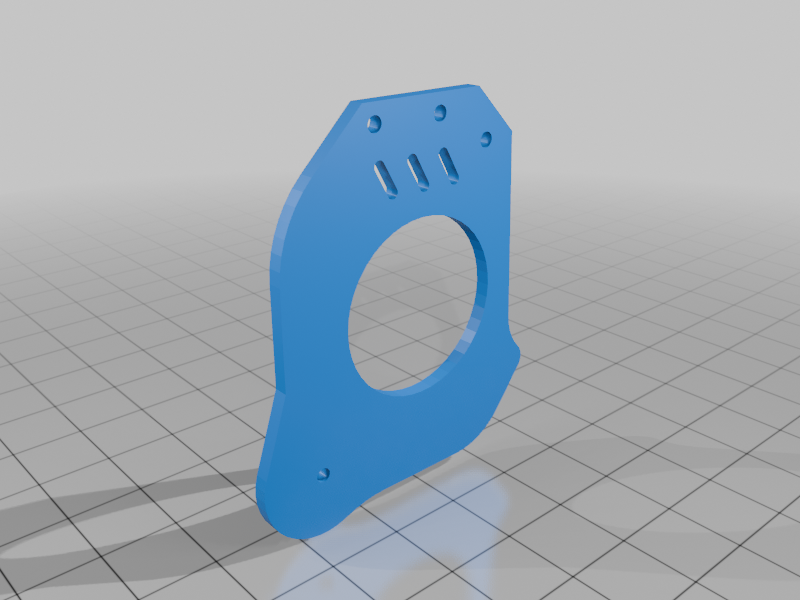 stl
stl0109_SidePlateRight.STL
81 Ko · 165 téléchargements
-
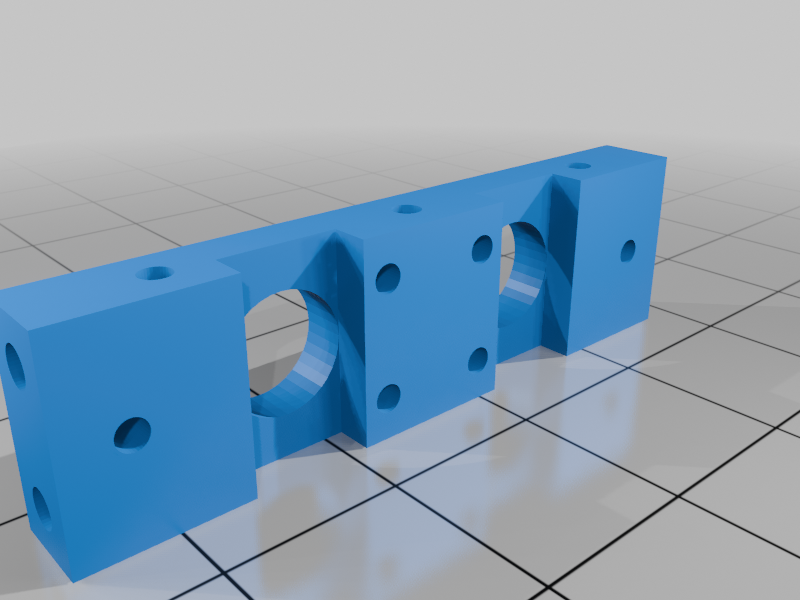 stl
stl0110_MotorBracket.STL
114 Ko · 171 téléchargements
-
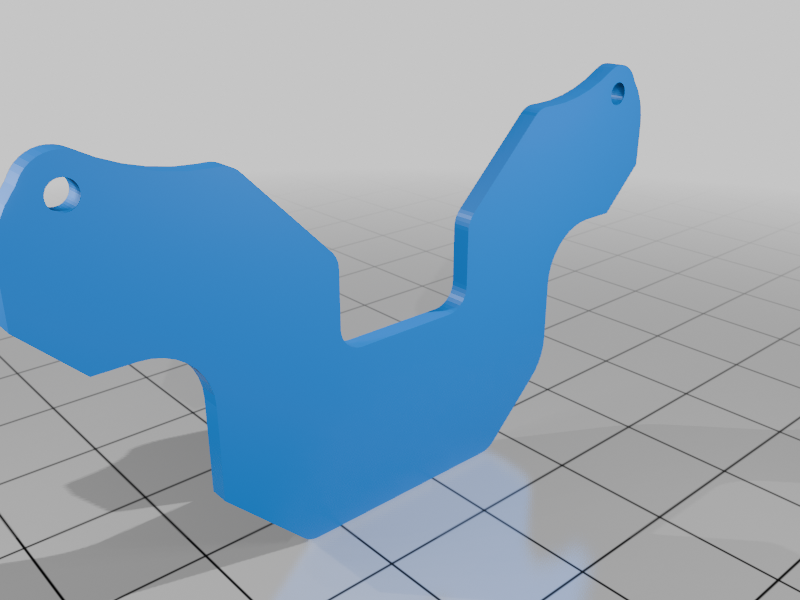 stl
stl0111_PCB_Brackets.STL
40 Ko · 165 téléchargements
-
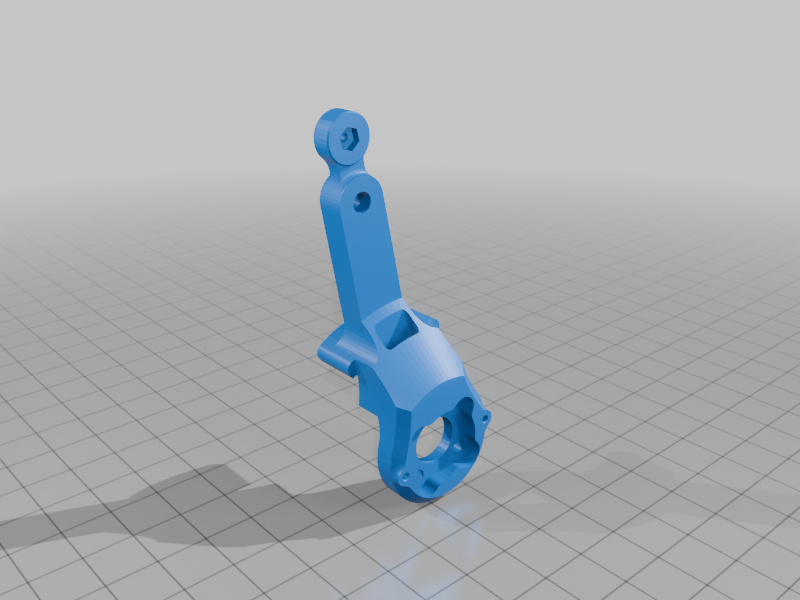 stl
stl0112_LegLeft.STL
311 Ko · 173 téléchargements
-
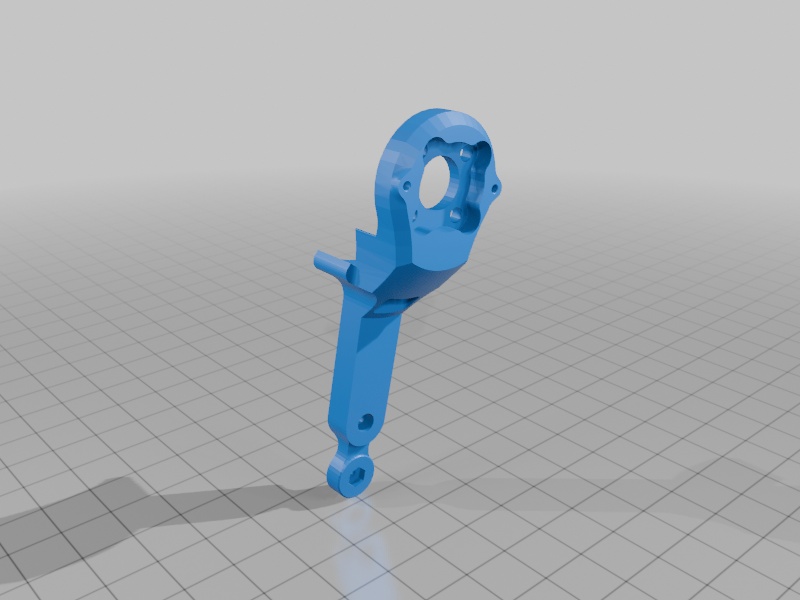 stl
stl0113_LegRight.STL
311 Ko · 165 téléchargements
Description
A small self-balancing wheel-legged bot driven over WiFi from your phone. Two brushless gimbal motors run the wheels, two STS3032 servos lift the legs, an MPU-6050 keeps it upright, and an ESP32 ties it all together. It self-balances in about two seconds after you lift it — and yes, it jumps.
⚠️ 2026-05 update: I found some design problems with the controller PCB and I'm working on a revision. If you're starting a build right now, hold off on ordering boards until v2 lands — assembly and firmware steps below are still accurate.
📦 Resources
- Bill of Materials (PDF) — Download here
- Core & Firmware (GitHub) — Open repo
🖨 Print settings
Recommended materials per part group:
- Frame, leg arms, motor mounts — engineering-grade filament (PC, PC-CF, PA-CF, ASA, or ABS+). These parts take real load.
- Wheel hubs & connectors — PETG or ABS works.
- Tires / feet — TPU.
- Jigs and non-load parts — PLA is fine.
🛠 Tools you'll need
ItemAliExpressAmazonNotesSoldering Iron TS101AliExpress LinkAmazon Link(Recommended)Heat Inset Tip Kit - For TS101AliExpress LinkAmazon Link(Recommended)Electric Precision ScrewdriverAliExpress LinkAmazon Link(Recommended)Allen Key SetAliExpress LinkAmazon Link(Recommended)Torx Key SetAliExpress LinkAmazon Link(Recommended)Torque ScrewdriverAliExpress LinkAmazon Link(Recommended)Wire stripperAmazon Link(Recommended)Wire cutterAliExpress LinkAmazon Link(Recommended)Heat Insert Press ToolAliExpress LinkAmazon Link(Recommended)Crimp ToolAliExpress LinkAmazon Link(Recommended)Soldering Iron - Generic (Alternative)AliExpress LinkAmazon LinkBudget friendly alternativeHeat insert tip - set (Alternative)AliExpress LinkAmazon LinkBudget friendly alternativePrecision Screwdriver SetAliExpress LinkAmazon LinkBudget friendly alternativeHeat inserts and soldering pads on the controller PCB are M2 and M3 — see the if you haven't pressed inserts before.
🔧 Assembly
Baseplate & counterweight
Secure the baseplate and counterweight block with M3×8 screws.
Servo mounting
- Attach short brass spacers to the servo connection module.
- Mount the two STS3032 servos onto the module with the output shafts facing outward.
- Secure to the baseplate with M2.5×10 screws.
Mainboard installation
- Use long brass spacers at the front and short spacers at the rear to mount the ESP32 controller PCB.
- Press the M3 nuts into the 3D-printed leg connector slots before screwing in.
- Secure the side panels with M3×6 screws.
Wheel hubs
- Press the 3D-printed hub onto each gimbal motor and secure with M4×8 grub screws.
- Align the shaft flat to within ±0.2 mm — a sloppy flat will cause slip under jump load.
- Slide the TPU tire onto the hub.
Encoder boards
- Glue the 4×1 mm magnet to the white connecting post.
- Press the post onto the green-marked position on the motor shaft. A drop of CA helps.
- The screw holes on the nylon-sintered leg parts are slightly tight — open them up before mounting the encoder PCBs.
Leg-motor connection
- Insert the connecting column into the leg part and slide the bearing onto the column.
- Press M2 nuts into their slots.
- Mount the servo arm into the leg, then connect the leg assembly per the diagram.
- Longer tire fenders go backward for obstacle clearance.
- Attach the legs to the brushless motors. Slide sleeves onto screws, mount bearings onto the sleeves, and fix them to the support structure.
💻 Firmware & calibration
Source, libraries, and the FD calibration tool live in the repo: - Core & Firmware (GitHub) — Open repo
Servo zero-position calibration
You'll need:
- Arduino IDE 2.3.4
- ESP32 board package v2.0.3 (newer versions break the servo lib — pin to 2.0.3)
- FD calibration tool (
/Tools/FD1984-240227/FD.exe)
Steps:
- Open
SteeringEngineDebug.inofrom/Tools/SteeringEngineDebugand upload it. - Power on the bot before plugging USB into the computer — order matters.
- Select ESP32 Dev Module and upload.
- Place the bot on its support block and disconnect one servo cable so the two STS3032s don't conflict on the bus.
- In FD: select the COM port, set the baud, connect, and search. The detected
STS3032is the left leg servo. Reconnect the right servo, set its ID to 2, and repeat zero-position calibration. - Reconnect both servo cables.
Flashing the main firmware
- Open
/Src/wl_pro_robotin Arduino IDE. - Install the bundled libraries from
/Src/librariesone by one. - Set partition scheme to No OTA (Large APP) — the binary is too big for the default scheme.
- Select ESP32 Dev Module and upload.
🎮 First run
- Plug a 7.4 V 1100–1500 mAh LiPo into the XT30.
- Flip the switch. Red LED + a few seconds of self-test.
- Connect your phone to WiFi
navbot_en01-XXXXXX, password12345678. - Open
http://192.168.1.11in your browser. - Tap Robot Go and lift the bot off the ground — it should self-balance within ~2 seconds. Set it down and drive.
📜 Credits & license
This build is derived from the open-source Navbot-EN01 project by fuwei007 on GitHub. The firmware and calibration tooling come directly from that repo; the chassis, PCBs, and documentation in this listing are my adaptation.
If you build one, post a make — I read every comment and I'll fix the things you flag in the next revision.
💛 Support
If this project saved you a weekend of part-sourcing, ordering anything from the BOM PDF through the affiliate links costs you nothing extra and helps fund the next build. Thanks.